 Deskman Classic ™ - User Guide
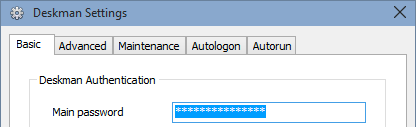
Configure important Deskman settings, separated into different tabs.
Basic
Use a strong password. We recommend using a brand new password, not used anywhere else, that only administrators know. Do not share the password.
In case you forget it, contact tech support and we will help you recover access to Deskman.
The password will be required to open Deskman when hidden. If Deskman is not elevated you'll be required to elevate, following Windows security standards.
- Deskman Authentication : Enter a password. It will be required to operate Deskman.
- Primary Hotkey : Click on the box, and press a key combination to open Deskman. By default the main hotkey is
Ctrl-Shift-F12
Advanced
- Hide Deskman icon : Hides the Deskman taskbar icon
- Disable New Task option : Hides the New Task option on the taskbar icon menu
- Disable Shutdown option : Hides the Shutdown options on the taskbar icon menu
- Disable Maintenance option : Hides the Maintenance option on the taskbar icon menu
- Do not enforce changes : Check this option if you experience issues/glitches whenever you press Apply/Clear. If this option is enabled, you'll need to log off, or reboot, to activate changes.
- Caps lock must be enabled for hotkeys to work : Check this option if you want to prevent users from accidentally pressing hotkeys—caps lock will have to be ON for Deskman to accept a hotkey. Use with caution.
Maintenance
Maintenance mode is designed to allow administrators to perform maintenance tasks easier, access tightly protected computers when needed, and to allow users to remove restrictions without having direct access to Deskman.
- Administrators have maintenance access at startup : Check this option to allow administrators to have full desktop access at startup —with caveats— regardless of the security level in place
- Enable Maintenance Hotkey : Check this box to activate the Maintenance Key, by default
Ctrl-Shift-M, which allows you to enter/exit Maintenance mode, at will. Type a Maintenance Password to require a password in order to enable Maintenance mode. By default, Maintenance mode is active for 20 minutes — pressing the Maintenance Key again also disables it.
Note that persistent restrictions will still affect all users, even under maintenance.
Autologon
Click the Open User Accounts button and follow the instructions to activate autologon. Autologon must be configured manually. Domain-based accounts might not work with autologon.
Autorun
Applications and websites can be set up to be executed automatically at startup in the Autorun tab.
- Application : Enter up to three applications, including full path, if necessary, and parameters, if needed
- Website : Enter a website to be opened at startup on Internet Explorer, in kiosk mode
- Keep Always Running : Check this box to make sure applications/webs are kept running at all times. If web filtering is enabled, make sure you enter safe keywords to allow your website at all times.
Examples:
- notepad.exe "c:\my documents\text.txt"
- "C:\Program Files\Microsoft Office\Office\Winword.exe"
- chrome.exe www.anfibia-soft.com -incognito
- http://www.anfibia-soft.com